This method makes short vertical videos that look like 3D motion graphics, with AI doing most of the making. Claude writes the script and one picture description per line. An image tool draws one picture per line, and a video tool turns each picture into a clip of about six seconds. A voice tool reads the script, and an editor puts it all together.
It is AI pictures with AI motion, made to look 3D. No 3D model is built at any step. The tools named below are examples, not recommendations, and none of them pays us.
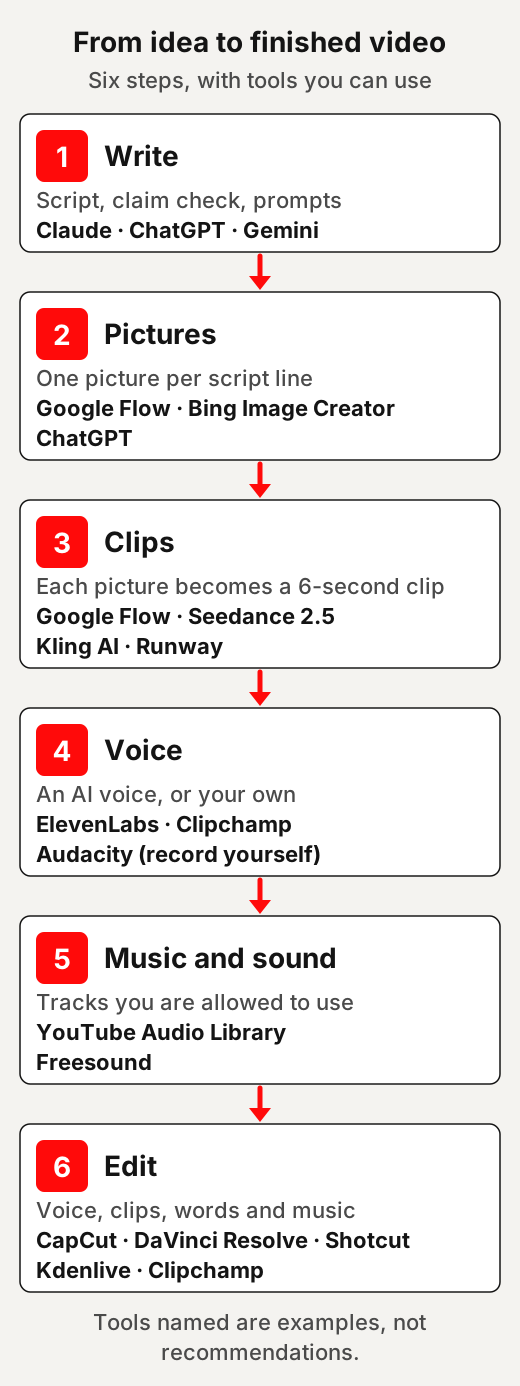
The six steps at a glance
| Step | What you do | What comes out |
|---|---|---|
| 1. Write | Run one chat, stage by stage | A checked script, picture prompts, motion prompts and voice lines |
| 2. Pictures | Paste the picture prompts into an image tool | One vertical picture per script line |
| 3. Clips | Animate each picture | One clip of about six seconds per picture |
| 4. Voice | Use an AI voice, or record your own | One audio file of the script |
| 5. Music and sound | Pick a track and a few sound effects | Audio you are allowed to use |
| 6. Edit | Put voice, clips, words and music together | One finished vertical video |
1. Write everything in one chat
Paste the master prompt below into Claude or another chatbot. It works in seven stages and stops after each one. You read the result, change what you want, then type “next”.
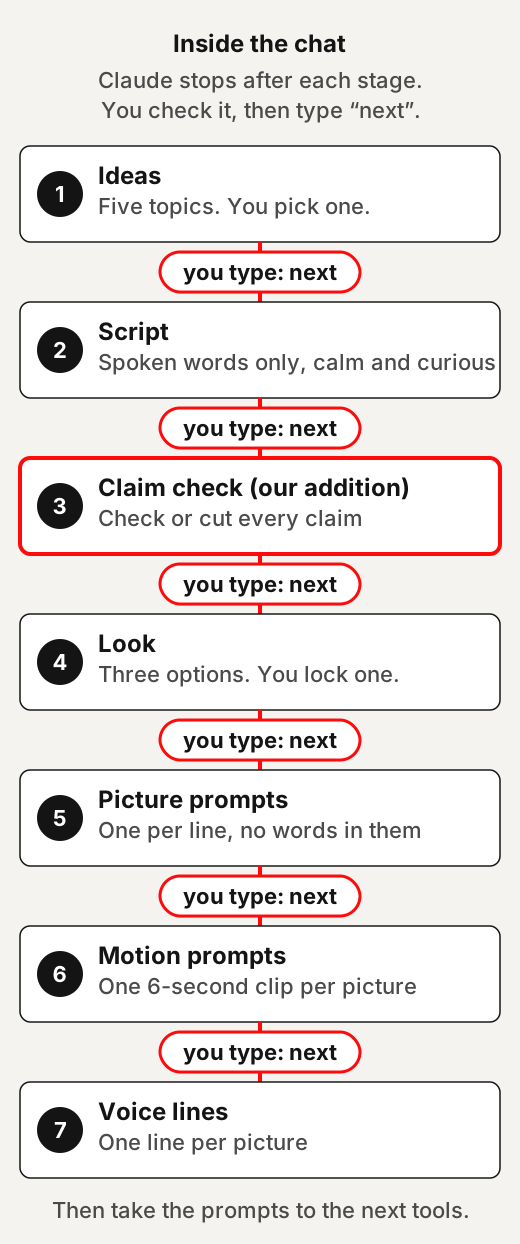
The third stage is our addition: a claim check. Anthropic’s help centre says Claude “can occasionally produce responses that are incorrect or misleading”. It adds that Claude “can display quotes that may look authoritative or sound convincing, but are not grounded in fact.”
So the chat lists every fact, number, date and quote in the script before anything is drawn. Check each one against a real source, or cut the line. Our guides to why AI makes things up and spotting a fake quote show how.
The prompt also sets the tone. Our reading: a short video holds people better when it shares something interesting than when it lectures them. So the script rules leave out lines like “the truth is” and “nobody tells you”.
Tools you can use
- Claude (claude.ai): Anthropic’s AI assistant. Its pricing page lists a free plan.
- ChatGPT (chatgpt.com): a chatbot whose home page offers to sign up for free.
- Gemini (gemini.google): Google’s AI assistant.
Template — fill in the brackets
Act as my production helper for one short vertical explainer video about [topic, or "suggest topics"] for [audience]. Work in seven stages. After each stage, stop and wait for my reply: a choice, changes, or "next".

1. Ideas: five topic ideas in a table, each with a working title. I pick one.
2. Script: [20–40] seconds of narration, spoken words only. Calm and curious, plain words, speaking to "you". Open with something familiar, show what sits underneath it, end with one small thing to try. Share, don't lecture: no "the truth is", "nobody tells you" or "exposed".
3. Claim check: list every fact, number, date, name and quote in the script, and say what kind of source could confirm each one. Do not invent links, titles or quotes. Flag anything you are unsure of. I will fix or cut lines before we go on.
4. Look: three options for one look for the whole video: background, one accent colour, light and materials, in the style of [style, e.g. "clean 3D objects on a plain background"]. I lock one.
5. Pictures: one picture prompt per script line, numbered. Each repeats the locked look word for word, shows one main object, fits a vertical 9:16 frame with the important part near the centre, and has no words, letters, numbers or logos. Under each, give the [1–4] words I will add in the editor.
6. Motion: one 6-second prompt per picture, numbered. The picture is the first frame and the camera stays still. 0–1 s: the main object, already in the picture, makes one small opening move, such as a slight lift or turn. 1–4.5 s: it settles, with a slow, gentle drift. 4.5–6 s: it moves out and leaves the frame clear. Sound effects only: no music, no voice.
7. Voice: the final script again, one line per picture, same words, each line short enough to say in about five seconds. No labels or numbers.
Ready to use — copy and paste as is
Act as my production helper for one short vertical explainer video for curious adults. Work in seven stages. After each stage, stop and wait for my reply: a choice, changes, or "next".

1. Ideas: five topic ideas about everyday habits and how attention works, in a table, each with a working title. I pick one.
2. Script: 20–40 seconds of narration, spoken words only. Calm and curious, plain words, speaking to "you". Open with something familiar, show what sits underneath it, end with one small thing to try. Share, don't lecture: no "the truth is", "nobody tells you" or "exposed".
3. Claim check: list every fact, number, date, name and quote in the script, and say what kind of source could confirm each one. Do not invent links, titles or quotes. Flag anything you are unsure of. I will fix or cut lines before we go on.
4. Look: three options for one look for the whole video: background, one accent colour, light and materials, in the style of clean 3D objects on a plain background. I lock one.
5. Pictures: one picture prompt per script line, numbered. Each repeats the locked look word for word, shows one main object, fits a vertical 9:16 frame with the important part near the centre, and has no words, letters, numbers or logos. Under each, give the 1–4 words I will add in the editor.
6. Motion: one 6-second prompt per picture, numbered. The picture is the first frame and the camera stays still. 0–1 s: the main object, already in the picture, makes one small opening move, such as a slight lift or turn. 1–4.5 s: it settles, with a slow, gentle drift. 4.5–6 s: it moves out and leaves the frame clear. Sound effects only: no music, no voice.
7. Voice: the final script again, one line per picture, same words, each line short enough to say in about five seconds. No labels or numbers.The chat stops after each stage until you type “next”.
2. Make one picture per line
Each script line gets one picture, and each picture later becomes one clip. Keep the count the same all the way through, so line 4 always goes with picture 4 and clip 4.
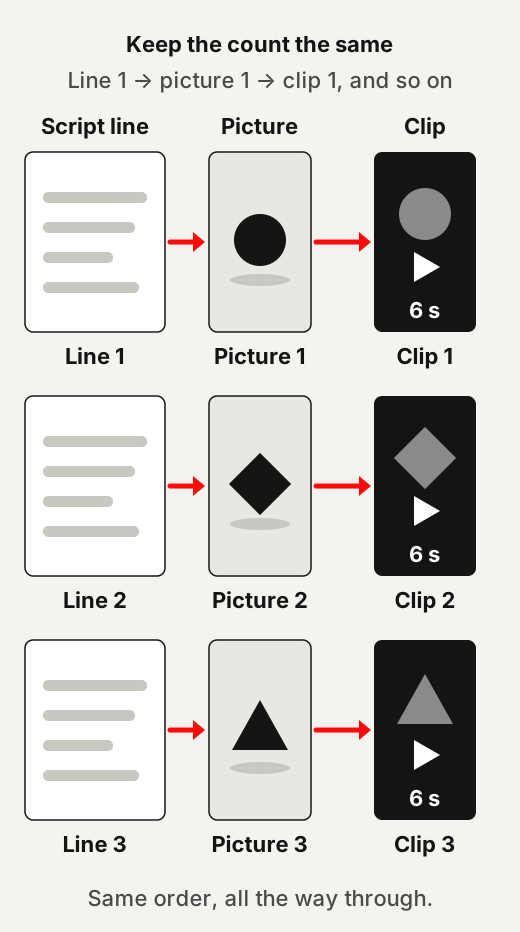
Four rules in the picture prompts do most of the work:
- One locked look. Every prompt repeats the same words for the background, colour and light. That keeps the pictures looking like one video.
- One main object. A single clear subject in a vertical 9:16 frame, with the important part near the centre.
- No words in the pictures. Add the words later in the editor, where you control the spelling, size and timing.
- No brand logos. A trademark can be a word, phrase, symbol or design that identifies a business’s goods or services, as the USPTO explains. Our reading: the simplest choice is to leave other companies’ logos out of the pictures.
Paste the image batch line into your image tool, with all the picture prompts under it. Save the results in order. If your tool takes one prompt at a time, paste each picture prompt on its own. Names like S-01 and S-02 keep them straight.
Tools you can use
- Google Flow (flow.google.com): Google’s AI creative studio for video and images. Our Google Flow explainer goes further.
- Bing Image Creator (bing.com/images/create): its page calls it a free AI image generator.
- ChatGPT (chatgpt.com): it can also create images once you log in.
Template — fill in the brackets
Make one [vertical 9:16] image for each numbered prompt below, in order. Use the same look in every image. No words, letters, numbers or logos in any image. [Name them S-01, S-02 and so on.]

[paste the picture prompts here]
Ready to use — copy and paste as is
Make one vertical 9:16 image for each numbered prompt below, in order. Use the same look in every image. No words, letters, numbers or logos in any image. The prompts follow.3. Turn each picture into a six-second clip
This is image-to-video: your picture becomes the clip’s first frame, and the prompt says how things move. Google Flow’s help describes using frames to “animate images”, with your picture added as the start frame.
Every motion prompt follows the same simple plan. The camera stays still. The main object starts in the picture, makes one small opening move, settles, then moves out to leave the frame clear for the next clip.
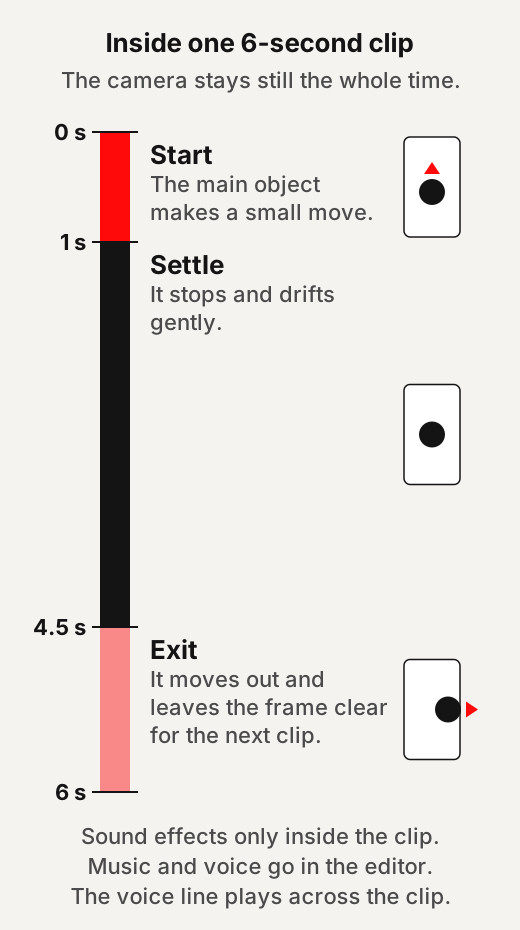
Ask for sound effects only inside the clips: no music and no voice. You add those in the editor, where you can balance them. If your tool offers a different clip length, pick the nearest and trim it later. If it takes one picture at a time, make the clips one by one, in order.
Tools you can use
You can use Google Flow, or similar tools such as Seedance 2.5.
- Google Flow (flow.google.com): the same studio as step 2.
- Seedance 2.5 (seed.bytedance.com): ByteDance Seed calls it a next-generation audio-video joint generation model with precise reference control.
- Kling AI (kling.ai): an AI video and image generator with an image-to-video feature.
- Runway (runway.com): a platform to generate and edit video, images and audio. Its home page invites you to try it for free.
Template — fill in the brackets
Make one [6]-second vertical video for each numbered prompt below. Use picture [S-01] as the first frame of video 1, [S-02] for video 2, and so on. Keep the camera still. Sound effects only: no music, no voice, no words on screen.

[paste the motion prompts here]
Ready to use — copy and paste as is
Make one 6-second vertical video for each numbered prompt below. Use picture 1 as the first frame of video 1, picture 2 for video 2, and so on. Keep the camera still. Sound effects only: no music, no voice, no words on screen. The prompts follow.4. Add the voice
Stage 7 of the chat gives the script as one line per picture, with the same words. Our rule of thumb: each line should take about five seconds to say at a calm pace, so it fits inside its clip.
Paste the lines into a text-to-speech tool and choose a calm voice. Or record yourself, which keeps the voice your own.
Tools you can use
- ElevenLabs (elevenlabs.io): an AI voice generator.
- Clipchamp (text to speech): Microsoft’s video editor. It says its AI text to speech feature is free for all Clipchamp video editor users.
- Audacity (audacityteam.org): a free, open source audio editor and recorder, for recording your own voice.
Template — fill in the brackets
Turn this script into voiceover lines for [number] pictures: one line per picture, in order, with the exact same words. Each line should take about [five] seconds to say at a calm pace. No labels, numbers or stage directions, just the lines.

[paste the script here]
Ready to use — copy and paste as is
Turn the final script above into voiceover lines: one line per picture, in order, with the exact same words. Each line should take about five seconds to say at a calm pace. No labels, numbers or stage directions, just the lines.5. Pick music and sound effects
Use only music and sounds you are allowed to use, and read each track’s licence.
- YouTube’s Audio Library, inside YouTube Studio, has royalty-free production music and sound effects, YouTube says. If you use a track with a Creative Commons licence, you must credit the artist in your video’s description.
- YouTube adds that only Audio Library music and sound effects are known to it to be copyright-safe. It is not responsible for issues with “royalty-free” music from other channels or libraries.
- Freesound (freesound.org) is a shared database of sounds under Creative Commons licences. Its FAQ says some sounds cannot be used commercially, and many need you to credit the author. Our free music production toolkit explains the licences.
Keep the music low, under the voice. Two or three sound effects are usually enough for a short video: our reading, not a rule.
6. Put it together in an editor
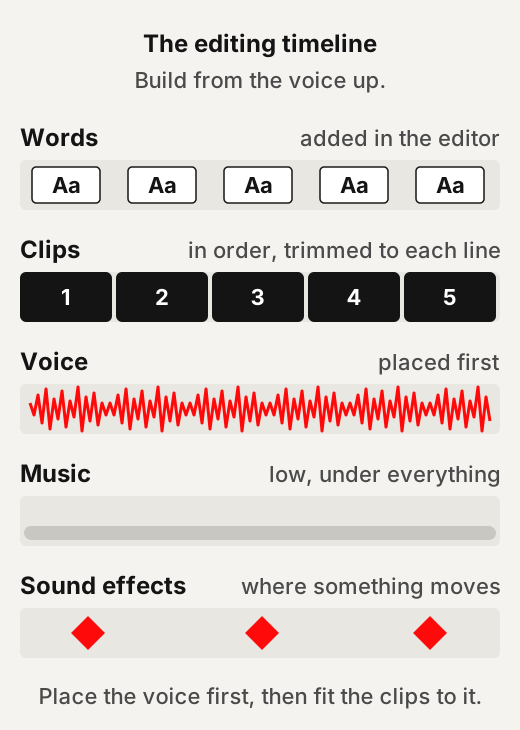
Build from the voice up:
- Start a vertical 9:16 project and place the voice first.
- Lay the clips on top in order, and trim each one to its line.
- Add the words for each scene as text in the editor.
- Add the music under everything, quietly, and a few sound effects where something moves.
- Watch it once with the sound off and once with it on, then export.
Tools you can use
- CapCut (capcut.com): an AI video editor.
- DaVinci Resolve (blackmagicdesign.com): Blackmagic Design’s editing, colour and audio software. Its page says there is a free version.
- Shotcut (shotcut.org): a free, open source, cross-platform video editor.
- Kdenlive (kdenlive.org): a free and open source video editor.
- Clipchamp (clipchamp.com): Microsoft’s online video editor, which invites you to try it for free.
What can go wrong
- The pictures drift in style. Check that every picture prompt repeats the locked look word for word. In Google Flow, its help suggests ingredients to consistently use the same images for your character and key objects from one clip to the next.
- Words come out wrong. If a picture has lettering in it anyway, check every letter, or make it again with “no words, letters or numbers”. Then add the words in the editor.
- A clip runs longer than its line. Trim the clip in the editor, or shorten the line and record it again.
- A fact in the script is wrong. Go back to the claim list and check it against a source. If you can’t confirm it, cut the line, along with its picture and clip.
- A free option stops you for the day. Some free options limit daily use; Bing Image Creator’s page says guest limits reset daily. Spread the work over a few days, or switch tools for that step.
- The motion looks jumpy. Keep the camera still, and ask for one main movement per clip.
Before you post
YouTube’s monetization policies say content should not “be mass-produced, generic, repetitive, or manipulative.” If you use automated tools or templates, “the final product must still demonstrate your creative vision and provide educational or entertainment value.” Our reading: your own research and point of view matter more than how many videos you make. Our guide to AI side hustles covers faceless channels in more detail.
On labels, YouTube requires creators to disclose AI content when it appears realistic. It also says creators don’t need to disclose non-realistic content that’s made with AI. Its list of AI content that creators must disclose also includes this item: “Creates music that’s the main focus of the video.” YouTube adds that it may apply an AI label automatically, for example to content that contains C2PA metadata. TikTok requires creators to label AI-generated or significantly edited content that shows realistic-looking scenes or people. Our reading: stylised objects on a plain background sit closer to the non-realistic side than realistic people or places do. Check each video against the rules anyway.
Before you use a tool’s voices, music or clips in videos that earn money, check that tool’s own terms.
Try it this weekend
| When | What to do |
|---|---|
| Saturday morning | Run the chat to stage 3. Check every claim, and cut what you can’t confirm. |
| Saturday afternoon | Lock a look and make the pictures. Remake any that drift. |
| Sunday morning | Make the clips and the voice. |
| Sunday afternoon | Edit, watch it twice, and export. Note which step took longest. |
One short video, made slowly and checked, teaches you more about the method than ten made fast. That last line is our view, not a finding.
Quick answers
Is this real 3D animation?
No. It is AI pictures with AI motion, made to look 3D. No 3D model is built at any step.
Can I make these videos for free?
Several steps have options whose own pages say they are free, such as Claude's free plan, Bing Image Creator, Clipchamp's text to speech, Audacity and Shotcut. Runway's page invites you to try it for free. Free options can limit daily use: Bing Image Creator's page says guest limits reset daily.
Do I have to label these videos as AI-made?
It depends on the platform and the video. YouTube requires disclosure when AI content appears realistic and says non-realistic AI content doesn't need it. TikTok requires a label on AI content showing realistic-looking scenes or people.
Why does the chat stop after every stage?
So you can read and change each part before the next one builds on it. The claim check is the most important stop: Anthropic says Claude can occasionally produce responses that are incorrect or misleading.
Use this
Make one short video slowly and carefully before you try to make many.
- Pick one topic you can check against real sources.
- Run the chat, and check every claim before anything is drawn.
- Lock one look, and keep words and logos out of the pictures.
Can I point to a source for every claim, and do all the pictures share one look?
Quick quiz
Nothing is scored or saved. Recalling it once now is what makes it last.
1. What does the claim-check stage in the chat list?
Answer: Every fact, number, date and quote in the script.Read it again ↑
2. Where should the words that appear in the video be added?
Answer: In the editor, as text.Read it again ↑
3. What must you do if you use a Creative Commons track from YouTube's Audio Library?
Answer: Credit the artist in the video's description.Read it again ↑
How we checked this · Last checked October 2026
- Each tool is described from its own page, in its own words. We copied no prices, plans or limits, and we rank no tools.
- A tool is called free only where its own page says so; where a page only invites you to try it for free, we say exactly that.
- Platform rules come from YouTube Help, TikTok's Community Guidelines and Freesound's FAQ, read on their own sites.
- The prompts are our own, written for this page.
- Tool pages and platform rules change often, so we will check this page again soon.
Sources
How the tools work
- Claude Help Center, “Claude is providing incorrect or misleading responses. What’s going on?”, March 2026.Primary
- Google Flow Help, “Create videos in Google Flow”.Primary
Platform rules and music
- YouTube Help: “YouTube channel monetization policies”, “Disclosing use of GenAI content” and “Use music and sound effects from the Audio Library”.Primary
- TikTok Community Guidelines, “Integrity and Authenticity”.Primary
- Freesound, “Frequently Asked Questions”.Primary
- US Patent and Trademark Office, “What is a trademark?”Primary
Tools, described from their own pages
Lock the script before you draw anything
The pictures are the fun part, so it is tempting to start there. But one wrong fact means remaking a picture, a clip and a voice line. Check the claims first, and every later step gets easier.
Make the pictures look like one video
- Write the look once. Lock it in stage 4, then paste the same words into every picture prompt.
- Name files as you go. S-01, S-02 and so on, so line 4 always meets picture 4.
- One main object. Keep it near the centre of a vertical 9:16 frame.
- No words, no logos. Add words in the editor. Leave other companies' logos out.
- Remake, don't patch. If one picture drifts, make it again with the locked look.
This week: finish one short video
Pick a topic you already know well, and aim for 20 to 40 seconds. Run the chat, check the claims, then make the pictures, clips and voice. Finish it, rough edges and all, and note which step took longest.
Read next on this site
- Why AI makes things upWhat to look for when you check the claim list.
- Spot a fake quoteA quick way to test any quote in your script.
- Free music production toolkitThe sound licences in plain words.
- Google Flow explainedOne of the tools you can use for pictures and clips.
Ways to use the skill for others
- Make short explainer videos for a local business or a teacher, from their facts and with their sign-off.
- Offer the script and claim check on its own, turning someone's notes into a checked script.
- Assemble videos for people who already have clips and a voice track.
- Before any paid job, read each tool's terms on using its output in videos that earn money.
Ideas to explore, not financial or business advice. No result is promised.