AI tools can now turn a prompt, a song, a script or a recording into a short video or a picture. This guide covers five of them. For each: what it starts from, how to make a first piece, and who owns the result under its terms. None of them paid to be here, and none of the links earn us anything.
1. The five tools at a glance
Pick the tool by what you start with: a prompt, a song, a script or a recording.
All five use generative AI, which makes new pictures, sound, video or text from what you give it. Each one is described below from its own pages.
| Tool | You start with | What it makes | Free to try? |
|---|---|---|---|
| Magnific (formerly Freepik) | A prompt or a picture | Pictures, video, voices and music, plus stock files | Free accounts, for personal, non-commercial use |
| Kaiber | A song, plus pictures or clips | Music videos cut to the beat | No free plan shown; a $5 trial for five days |
| Fliki | A script, a blog post or an idea | Narrated videos with stock pictures | Free plan, with a watermark |
| Descript | A recording | An edited video, captions and clips | Free plan, with 720p export |
| Dezgo | A prompt or a picture | Pictures and video clips | Free version, no account needed |
2. Four questions before you make anything
Check ownership, training, who can see it, and whose face or voice is in it.
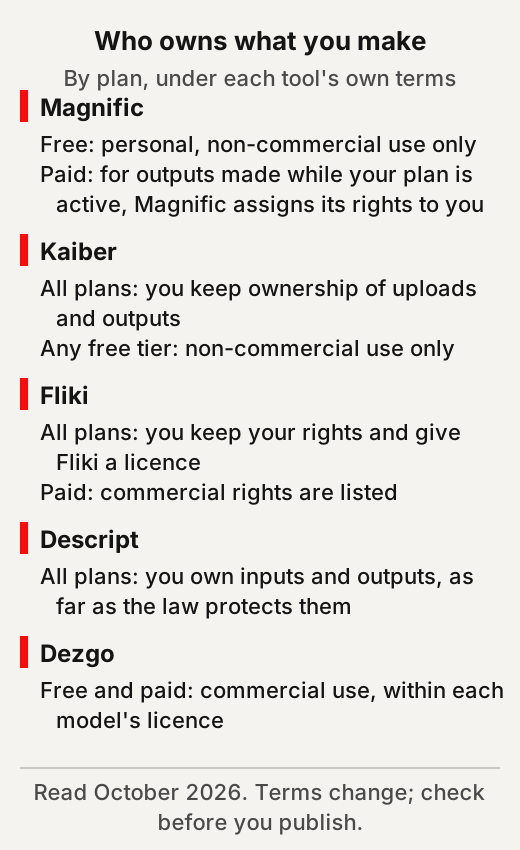
Each tool below answers these in its own terms of use, and the answers differ from tool to tool. On Magnific and Kaiber, the terms give free use fewer rights than paid use, and Fliki lists commercial rights only on its paid plans.
- Who owns it? Search the terms for “output” and “ownership”. Check whether free and paid plans get the same rights.
- Does it train on it? Search the terms and privacy policy for “train”. Look for a setting that turns it off.
- Who can see it? Check whether what you make stays private. Magnific, for example, treats inputs and outputs as confidential unless you share them publicly.
- Whose face or voice is in it? If a real person appears, or their voice is copied, get their permission. The tools’ own rules make that your job.
For example, if a clip is for a client’s paid advert, check your plan’s commercial rights before you start.
3. Magnific (formerly Freepik): pictures, clips and stock in one place
Magnific is Freepik’s new name, and one account reaches many image, video and audio models.
Magnific’s home page says “Freepik is now Magnific” and calls it the same team and the same technology. Its menu includes an AI Image Generator, a Video Generator, Text to Speech and a Music Generator. It also holds a stock library it describes as “250M+ photos, vectors, icons, and templates”.
How to start with Magnific
Settle on one picture before you turn anything into video.
In its pricing table, a few seconds of video usually costs more credits than one picture. In practice, make a few versions of one scene in the image generator. Pick the one you like, and only then animate it. A clip built on a picture you already like wastes fewer credits.
Who owns what you make on Magnific
Paying subscribers get Magnific’s rights in what they make; free accounts get personal, non-commercial use.
Its AI Products Terms, dated June 2026, assign paying subscribers all the rights Magnific may have in an output. That holds only if the subscription is active when the output is made. Free accounts get a personal licence to use outputs only for non-commercial purposes. The terms also let Magnific restrict outputs of certain tools to uses such as personal or editorial use. Music from its ElevenLabs-powered Music Generator may not go on streaming services such as Spotify, or be used commercially on its own as audio files or samples. The terms say Magnific does not guarantee an output is exclusive. They add that in some countries an output may not be protected by intellectual property rights. The terms let Magnific use your inputs and outputs for security and to improve its products and services. They say Magnific will not use them to train its own AI models. Its privacy policy, dated April 2026, adds that it will never use images or voices you upload to train its own or other providers’ AI models.
Our reading: if the work is for a business or a client, make it while a paid plan is active.
Worth knowing about Magnific
Prices depend on your region and change with offers, so read the pricing page on the day.
The pricing page lists Premium, Premium+ and Pro Starter plans, with prices that exclude VAT and local taxes. It was running a time-limited discount when we looked, so we don’t print the figures. The terms say you must have permission from anyone whose image, voice or identity is in what you upload. Stock files used for free must credit the site, and the paid plans remove that need.
4. Kaiber: a music video from your own track
Kaiber is made for musicians: you bring a song, and it builds video around it.
Kaiber’s home page says “Turn your song into a music video”. Its Beat Sync tool takes your pictures or clips and a track and returns up to 10 beat-synced videos. Its Canvas also has ready-made workflows such as Animate Image and Make Them Talk.
How to start with Kaiber
Start with one section of the song and a handful of your own pictures.
For example, take the chorus of a new track and five photos from the session. Let Beat Sync cut them to the rhythm. Using your own pictures keeps the rights question simple. Beat Sync is not included on the Starter plan. How many videos it makes at once depends on the plan: up to 2 on Creator and up to 10 on Pro.
Who owns what you make on Kaiber
You own your uploads and outputs; third-party content Kaiber adds may be used only within that output.
Kaiber’s terms say you keep ownership of your uploads and of the output made from them. Any third-party content in the output is excluded. You may use that third-party content only as part of the original output, not on its own. They add that outputs may not be unique, because the service can make the same or similar output for others. Kaiber says it will not use your content to train generative AI models without your permission. The same terms let it use “usage data”, which includes text you type, in de-identified or aggregated form to train and improve its products. Its privacy policy, last revised in October 2023, does not mention training. Where Kaiber offers a free tier, the terms limit it to non-commercial use.
Worth knowing about Kaiber
The pricing page shows paid plans and a paid trial, not a free plan.
It lists Starter at $10, Creator at $29 and Pro at $99 a month, with 20% off for yearly billing. A trial costs $5 for five days, then becomes the Creator plan. Before you use Make Them Talk on a photo of a real person, ask that person. Kaiber’s terms bar using the platform in a way that violates any person’s rights.
For videos that move with the sound itself rather than AI scenes, see our music visualizers guide.
5. Fliki: from a script or blog post to a narrated video
Fliki turns text into a narrated video, adding an AI voice, pictures, music and subtitles.
Fliki says you can paste a script, a blog post or a one-line prompt. It then writes the script, picks visuals and adds the voiceover, music and subtitles. It describes its voice library as “2,000+ lifelike AI voices in 80+ languages and dialects”.
How to start with Fliki
Start from text you already wrote, then fix the scenes it picks.
For example, paste a short blog post and let it build a first draft. Then swap any stock picture that doesn’t match its sentence. Listen through once before you export, so a name read oddly doesn’t slip out.
Who owns what you make on Fliki
You keep your rights, and you also give Fliki a broad licence to use your content.
Fliki’s terms say you retain all of your rights to content you create on the service. They also grant Fliki a licence to use that content to operate, improve and promote its services and to develop new products. Its privacy policy says photos or videos of faces that you upload are not used to train AI models. The policy does not say whether other content you make is used for training.
Voice cloning on Fliki
Fliki can clone a voice, and asks you to clone only yours or one you may use.
Its voice-cloning page says to clone only a voice you own or have explicit permission to use. It says Fliki requires a consent step before a clone is made. It says voice cloning comes with the paid plans. Its terms also name impersonating people without their consent as a misuse. For example, clone your own voice to narrate your channel, but never a friend’s without asking first.
Worth knowing about Fliki
The free plan is for trying it out: few credits, lower resolution and a watermark.
The free plan gives 3 credits a month, 720p videos and a Fliki watermark. Commercial rights appear in the paid plans’ lists, not the free plan’s. The page shows prices in your local currency and changes them with sales, so we don’t print them.
6. Descript: edit a video by editing its words
Descript turns your recording into text, and deleting words from the text deletes them from the video.
Our guide to AI meeting-notes tools covers its transcripts; this section looks only at making videos. Descript says you edit your words to edit your video, and can cut filler words and retakes in a click. It can add captions, and its menu includes a Create Clips tool.
How to start with Descript
Record or upload one talk, then cut it down by editing the text.
For example, film a five-minute explanation, delete the stumbles in the transcript, and pull out one minute as a short. Watch the cut once at full speed to catch any jumps where words were removed.
Who owns what you make on Descript
You own your work where the law protects it; Descript may train on it unless you opt out.
Descript’s terms say that, between you and Descript, you own your input and output, to the extent the law protects them. They say Descript may use inputs and outputs to train its own models unless you have opted out. Its privacy policy says you can stop your projects being used to improve the service by turning off the “Share Data with Descript” setting. The terms add that its agreements with outside AI providers bar them from training on your inputs and outputs.
Worth knowing about Descript
There is a free plan, and the paid plans are priced per person.
The free plan includes 60 media minutes a month and 720p export. On yearly billing, paid plans run from Hobbyist at $16 to Business at $50 per person a month. Monthly billing runs from $24 to $65.
7. Dezgo: try image models without an account
Dezgo lets you try many image and video models in a browser, and its free version needs no account.
Dezgo’s FAQ says there is a free version you can use without registering. The free version has limits such as rate limits and lower image resolution, and some powerful video models are not in it. Its image tools include background removal, upscaling and editing an image from text.
How to start with Dezgo
Run one prompt through two or three models and compare.
For example, describe one product shot in a sentence, generate it on two different models, and keep the clearer result. Note which model made it, because the licence that applies depends on the model.
Who owns what you make on Dezgo
Dezgo says you may use outputs commercially, but each model’s own licence still applies.
Its FAQ says you own the rights to use each output as you wish, including commercially. The condition is that you follow each AI model’s licence terms. It says this applies to both the free version and the paid Power Mode. Its licences page lists the Apache License 2.0, the CreativeML Open RAIL-M licence and Google’s Gemini API Additional Terms of Service.
Our reading: before you sell anything made there, read the licence for the model you used.
Worth knowing about Dezgo
It is ad-supported, and its public pages give no price for the paid version.
Dezgo’s privacy policy says it uses third-party advertising companies to serve ads. We found no price for Power Mode on its public pages. Its privacy policy does not say whether it trains on what you make. Its terms ban sexual content, and say you need the rights and permissions to use any image of a real person. The company behind it is Dezgo SAS, registered in Paris.
8. Who owns AI-made work, beyond the tools’ terms
Terms hand over a tool’s rights, but Magnific warns some countries’ laws may not protect an output.
Descript’s terms, for example, give you ownership only “to the extent protectable under applicable law”. In the US, the Copyright Office’s January 2025 report says copyright “does not extend to purely AI-generated material”. It says that with current generally available technology, prompts alone do not give enough control. Using AI to assist rather than stand in for human creativity does not affect copyright in the output, it adds.
The report is about US law only. Two of the five tools also say that another user may get the same or a similar result. If a project depends on owning what you made, ask a lawyer where you live.
9. Faces, voices and labels
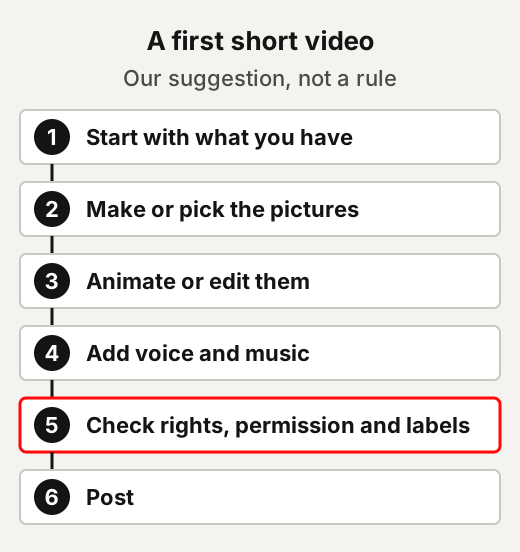
Use only faces and voices you have permission for, and label realistic AI content when a platform requires it.
A video, photo or audio clip that seems real but has been manipulated with AI is what people call a deepfake. YouTube requires creators to disclose AI content when it appears realistic. Its must-disclose list includes content that makes a real person appear to say or do something they didn’t do. It also says creators don’t need to disclose non-realistic content that’s made with AI. TikTok requires creators to label AI-generated or significantly edited content that shows realistic-looking scenes or people.
Magnific’s terms tell users to disclose clearly when content could be taken for a deepfake, citing Article 50(4) of the EU’s AI Act. For example, a cartoon fox reading a recipe is plainly not real. A lifelike clip of a named chef reading it could pass for real.
If your own face is the worry, our YouTube 2026 guide explains YouTube’s likeness detection.
10. Where to go next
For a whole first video, and for other tools, these guides go further.
- How to make 3D-style motion graphics videos with Claude and AI: the whole method, from script to edit, with prompts.
- Google Flow explained: Google’s own video tool, from its help pages.
- Music visualizers compared: tools that turn audio into moving visuals.
- AI tools that turn meetings into notes: Descript’s transcripts, and what note-takers do with your recordings.
- AI side hustles: the rules that apply when you sell work made with AI.
Quick answers
Who owns a video made with an AI tool?
It depends on the tool and on the law where you live. Kaiber says you keep ownership of your outputs, apart from any third-party content in them, and Descript says you own them as far as the law protects them. Magnific assigns its rights to paying subscribers. In the US, the Copyright Office says copyright does not extend to purely AI-generated material.
Can I use AI-made videos for commercial work?
Check your plan first. Magnific gives free accounts personal, non-commercial use only, and Kaiber limits any free tier to non-commercial use. Fliki lists commercial rights on its paid plans, and Dezgo allows commercial use within each model's licence.
Do AI video tools train on what I upload?
It varies by tool. Magnific says it will not use your inputs or outputs to train its own models, though it may use them to improve its services. Kaiber says it won't train on your content without permission, but may train on de-identified or aggregated usage data, which includes text you type. Descript may train unless you opt out.
Do I have to label AI-made videos?
On YouTube and TikTok, realistic AI content needs a label. YouTube requires creators to disclose AI content when it appears realistic, and TikTok requires a label on AI content showing realistic-looking scenes or people.
Is Freepik now Magnific?
Yes. Magnific's own home page says Freepik is now Magnific, with the same team and the same technology.
Use this
Our checklist, built from the five tools' own terms and the platforms' labelling rules.
Do I have the rights, the permission and the label this video needs?
Quick quiz
Nothing is scored or saved. Recalling it once now is what makes it last.
1. On Magnific, what may a free account do with what it makes?
Answer: Use it for personal, non-commercial purposes.Read it again ↑
2. Which tool's terms say it may train on your inputs and outputs unless you opt out?
Answer: Descript.Read it again ↑
3. When does YouTube require creators to disclose AI content?
Answer: When it appears realistic.Read it again ↑
How we checked this · Last checked October 2026
- We read each tool's own home, pricing, terms and privacy pages in October 2026. Kaiber's pages, and the price toggles, were read in a web browser because they load by script.
- We did not sign up for or pay for any tool, so features behind a login were not tested.
- Prices change with region and offers. We print them only where a page showed a clear figure in US dollars.
- We looked at more tools than are listed here, and include only those whose owner and terms we could read.
- The Copyright Office report covers US law only. We did not read other countries' laws, or the text of the EU AI Act, which appears here only as Magnific's own citation.
Sources
- Magnific: home page, pricing, Terms of Use (June 2026), AI Products Terms and Conditions (June 2026) and Privacy Policy (April 2026).Primary
- Kaiber: home page, pricing, Terms of Service (last modified 15 October 2024) and Privacy Policy (last revised 31 October 2023).Primary
- Fliki: home page, pricing, voice cloning, Terms of Use (updated 3 June 2026) and Privacy Policy (updated 7 October 2026).Primary
- Descript: home page, pricing, Terms of Service (last updated 25 February 2025) and Privacy Policy (last updated 14 April 2025).Primary
- Dezgo: home page, FAQ, licences, Terms of Service (last revised 24 September 2026) and Privacy Policy.Primary
- US Copyright Office, “Copyright and Artificial Intelligence, Part 2: Copyrightability”, January 2025.Primary
- YouTube Help, “Disclosing use of GenAI content”.Primary
- TikTok Community Guidelines, “Integrity and Authenticity”.Primary
- NIST Computer Security Resource Center glossary, “generative artificial intelligence”.Scholarly
- US Government Accountability Office, “Science & Tech Spotlight: Deepfakes” (GAO-20-379SP).Scholarly
Start with what is already yours
Our view: start with material you made yourself, such as your own song, script, photos or recording. The Kaiber section makes the same point: your own pictures keep the rights question simple. Then check your plan, since it can decide whether you may sell what you make.
Keep a rights note for each piece
- Copy the key lines from its terms. Our suggestion: copy what the tool says on ownership, training and permission. Add the date you read it.
- Note your plan for each piece. Magnific's rights go to subscribers only if the plan is active when the output is made. Our view: write down your plan and the date.
- On Dezgo, note the model too. Dezgo's FAQ says each AI model's licence terms still apply. Our suggestion: save a link to that licence with the file.
- Keep the note with the project. Our view: then you have a record of what the terms said when you made it.
This week: one practice short
Our suggestion: make one short video from material you already have. Try a chorus with your own photos, a blog post you wrote, or a talk you filmed. On some tools free use carries fewer rights, so treat it as practice, not client work.
Goes with: 5. Fliki: from a script or blog post to a narrated video ↑
Turn the skill into work for others
- Turn a small business's own blog posts into short narrated videos. First check that your plan includes commercial rights. If the project depends on owning the result, suggest they ask a lawyer where they live.
- Edit a creator's long talk into short clips by editing its transcript. Descript's terms say it may train on inputs and outputs unless you opt out. Tell the creator, and opt out if they ask.
- Cut a musician's own track and session photos into a beat-synced video. Ask everyone in the photos first.
Ideas to explore, not financial or business advice. No result is promised.
Goes with: 8. Who owns AI-made work, beyond the tools’ terms ↑
Before you post a realistic clip
- Ask everyone who appears. Our suggestion: get a written yes from anyone whose face or voice is in it.
- Clone only a voice you may use. Fliki and Descript both require consent before a voice is cloned.
- Ask whether it could pass for real. YouTube requires creators to disclose AI content when it appears realistic. TikTok requires a label on AI-generated content showing realistic-looking scenes or people.
- Label it as you upload. Our view: add the label before the video goes live, not after someone asks.
Keep going
- Script a history video with sourcesA method where every fact has a source: notebook, prompts, script and a claim check.
- What open AI models let you doWhat model licences say, for when the model you used decides the rules.
- Check a post before you share itFour quick moves for checking a post, and what the research does and does not show.
- GlossaryThe plain meaning of generative AI, deepfake and other terms used on this site.