

An AI add-on can only help with what it can read. So before you install one, check three things. What can it see? Which company’s AI model gets your text? Does that company keep it or train on it?
Below we walk through one spreadsheet add-on and three built-in assistants, using each company’s own pages. Then come the safety basics from Chrome, Mozilla and the UK’s cyber agency.
Prices and plans are as they read in October 2026, and they change often. We earn nothing from these tools, and no link on this page is an affiliate link. We did not install any of them; we describe what their own pages and store listings say.
1. What an add-on can see
A browser extension may be allowed to read every page you open; a sheet add-on asks for your files.
A browser extension is a small program that adds features to your browser. Mozilla describes an extension as something that “adds features and functions to a browser”.
One Firefox permission message reads “Access your data for all websites”. Mozilla says such an extension “could read the content of any web page you visit, as well as data you enter into those web pages, such as usernames and passwords”. It adds that password managers, shopping tools and ad blockers use this permission.
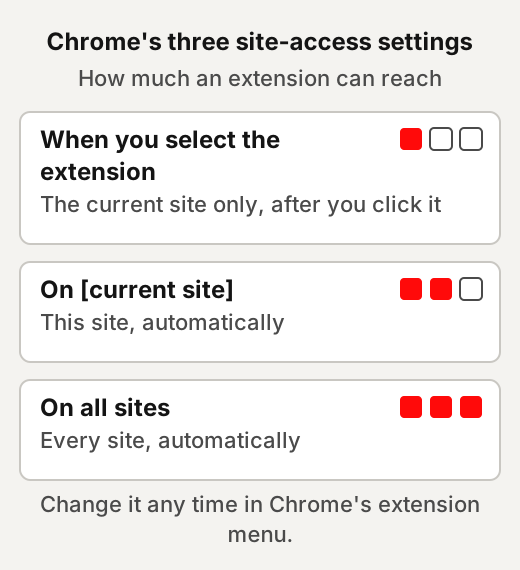
Chrome lets you narrow an extension down after you install it. In Chrome’s extension menu you can choose “When you select the extension”, “On [current site]” or “On all sites”. With the first, the extension can reach the current site only when you select it.
Chrome’s developer guide adds that when an update asks for a new permission that triggers a warning, the extension is disabled until you accept it. Our reading: a new warning after an update is worth reading before you accept it.
For example, an extension set to “On all sites” works on every page without asking. Set to “When you select the extension”, it waits until you click its icon.
Spreadsheet add-ons work differently. When you install a Google Sheets add-on, Google says a message will usually appear asking for access to data the add-on needs. The wording of that message tells you how far it reaches. The Ajelix add-on in section 3 is a good example.
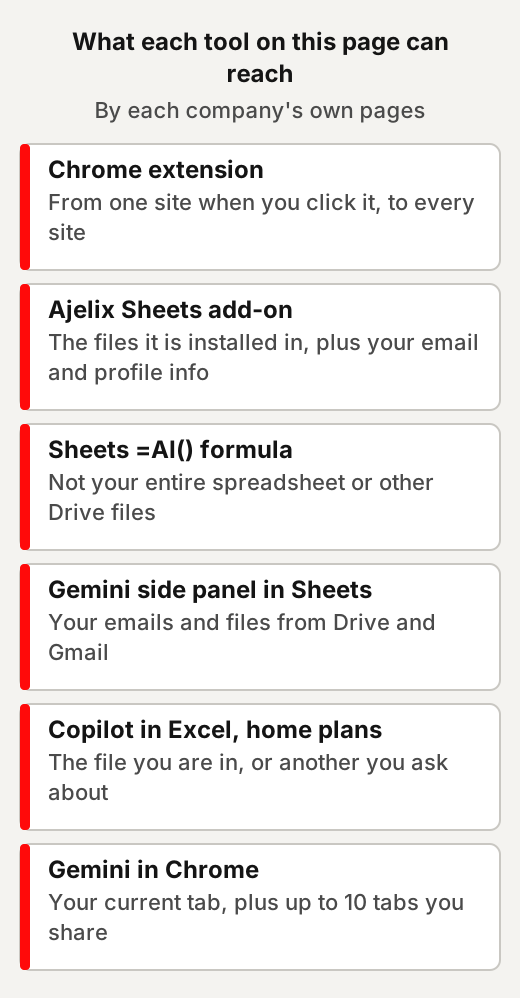
Built-in assistants describe their own reach on their help pages, quoted in section 4. The drawing below sums up what each tool on this page says it can reach.
2. Where your text goes, and who pays
Each tool sends your text to an AI model; that company’s terms decide what happens next.
For the tools on this page, the company that makes the tool states what happens to your text: Ajelix in its terms, Google and Microsoft on their help pages. Sections 3 and 4 quote them.
If a tool ever asks you to paste in an API key, the route changes. An API key is a code from an AI company that ties each request to your account, so the company can bill you for it. OpenAI describes an API key as “a unique code that identifies your requests to the API”. Google Cloud says standard API keys associate a request with a project “for billing and quota purposes”.
OpenAI’s key-safety page says a compromised key lets someone use your account quota without your consent, which can mean unexpected charges. It suggests setting monthly spend limits and turning on hard enforcement. That page is written mainly for developers.
The route can also change the training rules. Anthropic said in August 2025, for consumer accounts: “We will train new models using data from Free, Pro, and Max accounts when this setting is on”. It said the change does not apply to services under its Commercial Terms, including API use.
OpenAI’s policy page, updated March 2026, says: “ChatGPT, for instance, improves by further training on the conversations people have with it, unless you opt out”. For business products it says: “By default, we do not train on any inputs or outputs from our products for business users, including ChatGPT Team, ChatGPT Enterprise, and the API”.
Our AI myths page covers these settings in more detail. For example, a tool that runs on your own OpenAI key sends each request under that key, so the use shows up on your OpenAI account.
3. Ajelix: an AI agent inside Google Sheets
Ajelix’s add-on builds formulas, charts and scripts, and its terms say it doesn’t train on your data.
Ajelix’s add-on is called “AI Agent for Work” on the Google Workspace Marketplace, listed by SIA AJELIX. The listing says it works in Google Sheets, Docs, Slides and Forms, and can “Write and execute Google™ Apps Scripts”.
How to use it
- Open it. In a spreadsheet, go to Extensions, then “AI Agent for Work by Ajelix®”.
- Ask in the panel. The agent panel opens on the right; you type what you want done.
- Check the result. Our reading: because the agent can write and run scripts in your file, try it first on a copy of a sheet you care about.
What it can see
Its permissions name the files it is installed in, plus your email address and personal info.
The listing’s Permissions tab says the add-on will need to “View and manage spreadsheets that this application has been installed in”. It asks the same for documents, forms and Slides presentations. It also asks to “Connect to an external service” and to “See your primary Google Account email address”. It also asks to “Display and run third-party web content in prompts and sidebars inside Google applications”. And it asks to “See your personal info, including any personal info you’ve made publicly available”.
Ajelix’s terms say AI processing runs on servers owned and operated by Ajelix in the EU, and that your content is not sent to outside AI providers. The terms make one exception, “in exceptional situations, such as a disruption of our own infrastructure”. Then Ajelix may use a vetted external AI provider “for as long as needed to keep the Service available”.
Ajelix’s privacy policy says prompts, outputs and files are kept for the life of your account. The terms say that when you delete your account, your data is “permanently and irreversibly deleted immediately”.
| Ajelix | What its own pages say (October 2026) |
|---|---|
| Who runs it | SIA AJELIX, Jelgava, Latvia |
| Plans | Lite $39 a user a month billed monthly, or $32 a user a month billed yearly; Pro $99 or $82; Max $199 or $165, on the same basis |
| Free to try | Pricing page: “10 free requests every month”; terms: “a 7-day free trial” |
| Training | “We do not use Customer Data to train AI models.” |
| Your rights | “You retain all rights to Prompts, files you upload, and outputs generated for you” |
The pricing page and the terms describe the free offer differently, so check which applies when you sign up.
4. The AI already built into Sheets, Excel and Chrome
Google and Microsoft build AI into tools you may already pay for, and each explains what it reads.
Gemini in Google Sheets
Gemini works in a side panel and through an =AI() formula, if your Google plan includes it.
- Check you have it. Google says the feature “requires an eligible Google Workspace or Google AI plan”.
- Open the panel. In a spreadsheet, click Ask Gemini at the top right.
- Or use a formula. In a cell, type =AI or =Gemini, with your prompt and, if you like, a range of cells for it to use. Then select the cell and click Generate and Insert.
The side panel reaches further than the formula. Google says Gemini in Sheets can summarise your emails and files from Drive and Gmail.
Google says the AI function “doesn’t have access to your entire spreadsheet or other files in your Google Drive”. It generates only the first 350 selected cells with AI functions at a time. For example, a formula that classifies the review in cell B2 as positive, negative or neutral points the model at that one cell.
For users with Google AI plans, Google says Gemini in Sheets “doesn’t use your content to train or improve Gemini or other generative AI models”. It says Gemini in Sheets does not store your prompt or the output without your permission. Use through the Google Workspace Experiments programme is covered by a separate privacy notice and terms.
Copilot in Excel
Copilot opens from an icon in Excel and can edit your workbook, plan first, or just chat.
- Open it. Select the Copilot icon in the lower-right corner of Excel.
- Pick a mode. Edit mode changes the workbook directly; plan mode drafts steps for you to review first; chat only mode analyses without making changes.
- If you don’t see it. Microsoft says Copilot might not be included with your Microsoft 365 subscription.
The =COPILOT formula is no longer available in Excel from 14 September 2026. Results it already calculated stay in the workbook, but a cell that recalculates shows a #NAME? error. Microsoft points users to the Copilot pane instead. It was a preview feature, available only in Microsoft’s Frontier and Microsoft 365 Insider programmes.
Microsoft has a privacy page for Copilot in its home plans. Microsoft says Copilot “only makes use of the content in the file that you’re working in or content in another file that you ask it to look at”. It says prompts, responses and your file contents “aren’t used to train foundation models”. Those plans include Microsoft 365 Personal, Family, Premium and Pro.
Gemini in Chrome
Chrome’s built-in Gemini reads your current tab by default, and you can stop sharing it.
- Open it. Click Ask Gemini at the top of Chrome; the first time, you opt in.
- Know what it reads. By default it uses content from your current tab, and you can share up to 10 more of your recent open tabs.
- Stop sharing a tab. Click Show shared tabs above the text box, then remove the tab.
Google says Gemini in Chrome is being released gradually and is not available in Incognito mode.
Google’s Gemini privacy hub says Gemini in Chrome collects page content and the URL from your current tab and any tabs you share. If you use it to find pages you visited, Google says relevant URLs from your history are collected too. It adds that some of the page content Gemini uses “might not be visible to you”.
Info from websites you visit with it is stored in Gemini Apps Activity if your Keep Activity setting is on. Page content itself is logged to your Google Account temporarily and does not appear in Gemini Apps Activity, Google says. In Gemini Apps Activity you can control whether your data is used to improve Google AI.
For example, if a banking page is open in your current tab when you start a new chat, that page is shared by default. Google says you can turn off “Share current tab by default” in Chrome’s settings.
5. Staying safe: what the official guides say
Chrome, Mozilla and the UK’s cyber agency agree: install what you trust, and check its reach.
- Chrome. Chrome’s help says to “only approve extensions that you trust”. With Safe Browsing’s Enhanced protection on, Chrome warns you when an extension you want to install isn’t trusted.
- Mozilla. Mozilla suggests asking whether an extension’s permission requests are consistent with its features, and whether it has a privacy policy you are comfortable with. It notes that its scanning and review do not guarantee an extension is “absolutely 100% safe”.
- The UK’s National Cyber Security Centre. In guidance for organisations, it says extensions “typically have permissions to read or change the data on any websites a user visits”. It adds that Chrome extensions, like other popular browser extensions, have been found to contain spyware, advertising injections and crypto currency mining code, even when previously trusted.
- Independent research. A 2025 study of nine AI browser assistants found that they “often collect and share full webpage content, including the HTML DOM and user form inputs in some cases, with their first-party servers”.
- Google Account. Google advises reading an app’s privacy policy and security disclosures before you give it access to your Google Account data.
AI tools that read pages bring one more risk. Prompt injection is when text in a page or file slips instructions into what the AI is asked to do.
NIST defines it as an attack that “exploits the concatenation of untrusted input with a prompt constructed by a higher-trust party”. Our page on agent tools covers one project’s warning that it is still unsolved.
AI answers can also be wrong. Google’s help says Gemini features “may suggest inaccurate or inappropriate information”. Our page on why AI makes things up shows how to catch it.
How to remove an add-on
Each place has its own off switch.
- Chrome. Go to More, then Extensions, then Manage extensions, and on the extension select Remove.
- Google Sheets. Go to Extensions, then Add-ons, then Manage add-ons, and choose Options, then Uninstall.
- Your Google Account. On your account’s linked apps page, select the app and choose Remove access.
For the wider basics, such as passwords, updates and two-step sign-in, see our cybersecurity crash course.
Quick answers
Can a browser extension see my passwords?
It can if it has the right permission. Mozilla says an extension with "Access your data for all websites" could read data you enter into web pages, such as usernames and passwords. Chrome lets you limit an extension to the current site when you select it.
Does Gemini in Google Sheets train on my spreadsheet?
For users with Google AI plans, Google says Gemini in Sheets doesn't use your content to train or improve Gemini or other generative AI models. It also says it does not store your prompt or the output without your permission.
Does Copilot in Excel use my files for training?
For its home plans, Microsoft says prompts, responses and your file contents aren't used to train foundation models. It says Copilot only uses the file you are working in, or another file you ask it to look at.
What does "bring your own API key" mean?
You paste a key from an AI company into a tool. The key identifies your requests, so that company bills your use. OpenAI's key-safety page suggests setting monthly spend limits, because a compromised key can mean unexpected charges.
Use this
Our checklist, built from what Chrome, Mozilla, Google, Microsoft and OpenAI say on their own help pages.
Would I be happy for this tool to read the page I have open right now?
Quick quiz
Nothing is scored or saved. Recalling it once now is what makes it last.
1. In Chrome, which site-access setting lets an extension reach a site only when you click it?
Answer: When you select the extension.Read it again ↑
2. What does Google say the Sheets AI function cannot reach?
Answer: Your entire spreadsheet or other files in your Google Drive.Read it again ↑
3. What happened to Excel's =COPILOT formula?
Answer: It is no longer available from 14 September 2026.Read it again ↑
How we checked this · Last checked October 2026
- We read Ajelix's pricing page, privacy policy, terms and Marketplace listing on 27 October 2026, and Google's, Microsoft's, Mozilla's and OpenAI's own help pages the same day.
- We did not install any of the tools, sign up or start a trial. For Ajelix we quote the permission list shown on its Google Workspace Marketplace page.
- Prices and plans are a snapshot from October 2026 and change often. Ajelix's pricing page and terms describe its free offer differently, so we give both.
- We earn nothing from these tools. No link on this page is an affiliate link.
Sources
- Mozilla, MDN Web Docs, “What are extensions?”.Primary
- Mozilla Support, “About permission request messages for Firefox extensions” and “Tips for assessing the safety of an extension”.Primary
- Google, Chrome Web Store Help, “Install and manage extensions”.Primary
- Google, Chrome for Developers, “Permission warning guidelines”.Primary
- Google, Docs Editors Help, “Use add-ons, Apps Script, AppSheet & Data Studio”, “Collaborate with Gemini in Google Sheets”, “Use the AI function in Google Sheets” and “Learn how Gemini in Gmail, Calendar, Chat, Docs, Drive, Sheets, Slides, Meet, Vids & Pics protects your data”.Primary
- Google, Chrome Help, “Use Gemini in Chrome”, and Gemini Apps Help, “Gemini Apps Privacy Hub”.Primary
- Google, Google Account Help, “Manage links between your Google Account & apps from other developers”.Primary
- Google Cloud, “Manage API keys”.Primary
- Microsoft Support, “Get started with Copilot in Excel”, “COPILOT function” and “Copilot in Microsoft 365 apps for home: your data and privacy”.Primary
- OpenAI, “How your data is used to improve model performance” (updated March 13, 2026), and OpenAI Help Center, “Best practices for API key safety”.Primary
- Anthropic, “Updates to Consumer Terms and Privacy Policy”.Primary
- Ajelix, “Pricing”, “Terms & Conditions” and “Privacy Policy”, and its Google Workspace Marketplace listing.Primary
- Y. Vekaria and colleagues, “Big Help or Big Brother? Auditing Tracking, Profiling, and Personalization in Generative AI Assistants”, 34th USENIX Security Symposium, 2025, pp. 8115–8134.Scholarly
- UK National Cyber Security Centre, Device security guidance, “Managing web browser security” and “ChromeOS”.Primary
- NIST Computer Security Resource Center, Glossary, “prompt injection”.Primary
Pick the job, then the reach
An extension's reach can run from one site when you click it to every page you open. Our view: decide the one job you want AI help with first. Then give the tool only the reach that job needs.
Follow your text before you type
- Name the company whose model gets it. Our suggestion: find that line in the tool's own terms or help pages, not its sales page.
- Copy the training sentence. Our suggestion: save it with the date you read it, since plans and policies change.
- Check which kind of account you use. OpenAI and Anthropic describe different training rules for consumer accounts and for API or business use.
- Cap a key before you paste it. OpenAI's key-safety page suggests setting monthly spend limits. Our view: set one first, where the AI company offers it.
Before an agent touches a real sheet
- Read the Permissions tab. Ajelix's listing asks for the files it is installed in, your email address and your personal info.
- Note the exception in its terms. Its terms say it may use a vetted outside AI provider in exceptional situations, such as a disruption of its own infrastructure. It may do so for as long as needed to keep the service available.
- Settle which free offer applies. The pricing page and the terms describe the free offer differently. Our suggestion: check which you get when you sign up.
- Plan for when you stop. Its privacy policy says prompts, outputs and files are kept for the life of your account. Its terms say deleting the account deletes your data immediately and permanently. Our view: when you are done, save what you need, then think about deleting the account.
This week: one small job on a copy
Our suggestion: try one small job on a copy of a sheet. Use Gemini in Sheets or Copilot in Excel, if your plan includes it. In Excel, plan mode drafts steps for you to review first. Then check each answer before you rely on it.
Goes with: 4. The AI already built into Sheets, Excel and Chrome ↑
Turn careful set-up into work
- Build formulas, charts or summaries in a client's sheet with an AI assistant, and check every result. Work on a copy, and show the client the tool's training terms first.
- Set up a small office's spreadsheet AI: which tool its plan includes, what it reads, and who checks answers.
- Walk a small team through its browser extensions using Chrome's and Mozilla's own help pages. Leave each person a list of what they kept and why.
Ideas to explore, not financial or business advice. No result is promised.
Keep going
- Cybersecurity crash courseA plain-words cheat sheet on scams, attacks and protections, for people and small businesses.
- Why AI makes things upWhy AI gets things wrong, and practical checks that catch it.
- AI meeting notes toolsThree AI notetakers, and what their terms say about your recordings.
- GlossaryThe plain meaning of browser extension, API key and prompt injection.